INTERACTIVE DEVELOPMENT CASE STUDY2025
Windows XP
Portfolio Desktop
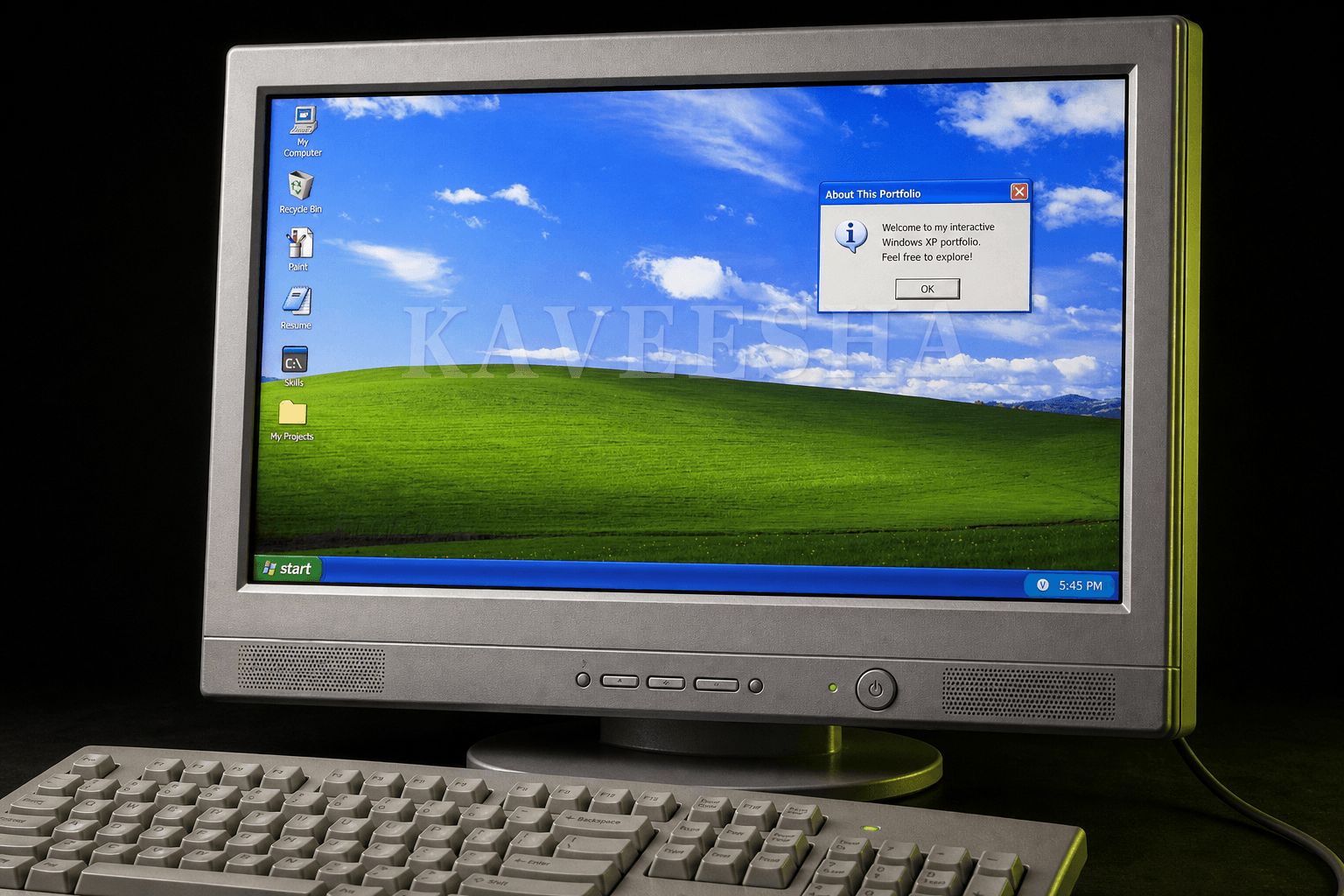
A nostalgic portfolio reimagined as a working Windows XP desktop, complete with boot flow, window management, taskbar behavior, folders, utilities, and interactive portfolio content.
PROJECT CONTEXT
I modeled the interface around a central React desktop state. Applications open as reusable XPWindow instances, the taskbar reflects active windows, and each portfolio area behaves like a familiar XP utility rather than a conventional webpage.
WHAT I DID
My contribution from concept to working experience.
I owned the front-end implementation and translated the creative direction into reusable components, interaction logic, and production-ready behavior.
Application state flow
Created loading, login, welcome, and desktop states with timed transitions and explicit state changes that reproduce the XP startup journey.
Window management
Built an active-window state map supporting open, close, minimize, maximize, restore, and taskbar representation for multiple applications.
Reusable XP interface
Created shared window chrome, title bars, menus, status bars, desktop icons, Start menu, taskbar, and system-tray components.
Functional portfolio apps
Implemented project explorer, project details, command-line skills, Paint, picture viewer, résumé Notepad, PDF viewing, and downloads.
HOW I BUILT IT
A deliberate build process,
step by step.
Model the operating-system flow
Defined the startup sequence and desktop states before building the individual portfolio applications.
Create the shell
Reproduced the Bliss desktop, icon grid, Start button, Start menu, taskbar, live clock, and system tray.
Build a window system
Designed one reusable XPWindow component and controlled every open application through centralized window state.
Connect portfolio content
Mapped projects, skills, contact details, résumé content, and media into familiar folders and utilities, then deployed with Vite and Vercel.
CORE FEATURES
- Five-second XP loading sequence
- Login and welcome states
- Start menu and live system clock
- Open/minimize/maximize window behavior
- Taskbar application buttons
- Command Prompt skills experience
- Paint and picture-viewer utilities
- Project explorer and résumé tools
PROBLEMS I SOLVED
Managing many application windows
A keyed state object keeps each window's content and open, minimized, and maximized status synchronized with the taskbar.
Recreating a familiar visual system
Gradients, borders, shadows, Tahoma-style typography, icon treatment, and exact control shapes were composed with reusable Tailwind utilities.
Making the theme useful
Every nostalgic element doubles as navigation: folders reveal projects, Command Prompt presents skills, and Notepad/PDF flows deliver résumé content.